
To reorder an Instagram carousel after posting, open the carousel from your profile in the Instagram app. Tap the three dots, choose Edit, then touch and hold the photo or video you want to move. Drag it to the new position and save the edit. Reopen the same post and swipe through it to make sure the order stuck. This is an edit to the original post, so you can correct a misplaced slide without publishing it again.
Instagram announced the gesture in March 2026. If you found an older tutorial that tells you to delete a photo and recover it from Recently Deleted, start with the direct edit instead. See the original announcement from Instagram’s Creators account.
Move an existing photo or video on your phone
- Open your Instagram profile and tap the published carousel. It should open as one feed post that you can swipe through. Opening the three-dot menu on your profile grid can take you to a different set of controls, so open the post itself first.
- Tap the three dots on the post and select Edit. If you manage several accounts, confirm the username before changing anything. Keep the original order in a note or screenshot if you expect to move several frames.
- Swipe to the photo or video you want to relocate. Press and hold it until you can drag it, then move it toward the intended position. Release when the other items make room. For a larger reshuffle, move one item at a time and check the order before the next move.
- Tap Done or the save checkmark shown by your version of the app. Allow the save to finish before leaving the editor. Reopen the post and swipe all the way through, playing any video whose position changed.
- If you moved a new frame to the front, return to your profile and look at the thumbnail as well as the post. Inside the carousel you are checking the sequence. On the grid you are checking how the preview is cropped.
The control labels can vary with app language and version. In Tech Life Unity’s original walkthrough, watch the hold before the drag and the separate profile-preview check afterward. Those two moments are useful if you can swipe between frames but cannot tell when one is ready to move. The Instagram Help Center’s carousel guide covers the multi-photo post and its editing controls.
Decide whether the post needs a move, a removal, or a follow-up
A photo that exists in the wrong place is a different problem from a photo that was never uploaded. Decide which one you have before opening the editor. That matters most if the original URL is already in a newsletter, client recap, or Story. A new post gets its own link, and anyone sent to the older one will still see the older post while it remains visible.
| What readers see | Best first move | What to verify |
| A result appears before the step needed to understand it | Move the existing step ahead of the result | The setup still makes sense on the previous slide |
| A clear topic photo is buried at the end | Move it forward if it works on its own | Grid preview, the next slide, and caption references |
| The caption points to the wrong slide | Edit the caption if the visuals already work | Every slide number or direction in the caption |
| An extra, redundant frame | Use the removal control if it is offered and removal is needed | The remaining frames still form a complete sequence |
| A missing photo or corrected artwork | Consider a linked follow-up or a corrected new post | Readers have a clear route to the updated information |
| Thumbnails on the profile are in the wrong order | Look for the separate grid controls | The order within the individual carousel is a different setting |
Hold off on removing frames while diagnosing a simple sequence issue. If a slide shares a single panorama with its neighbors or says “continue on the next slide,” moving it alone can break the reading path. Plan the whole move before you edit.
Worked example: put the outcome up front while keeping the how-to intact
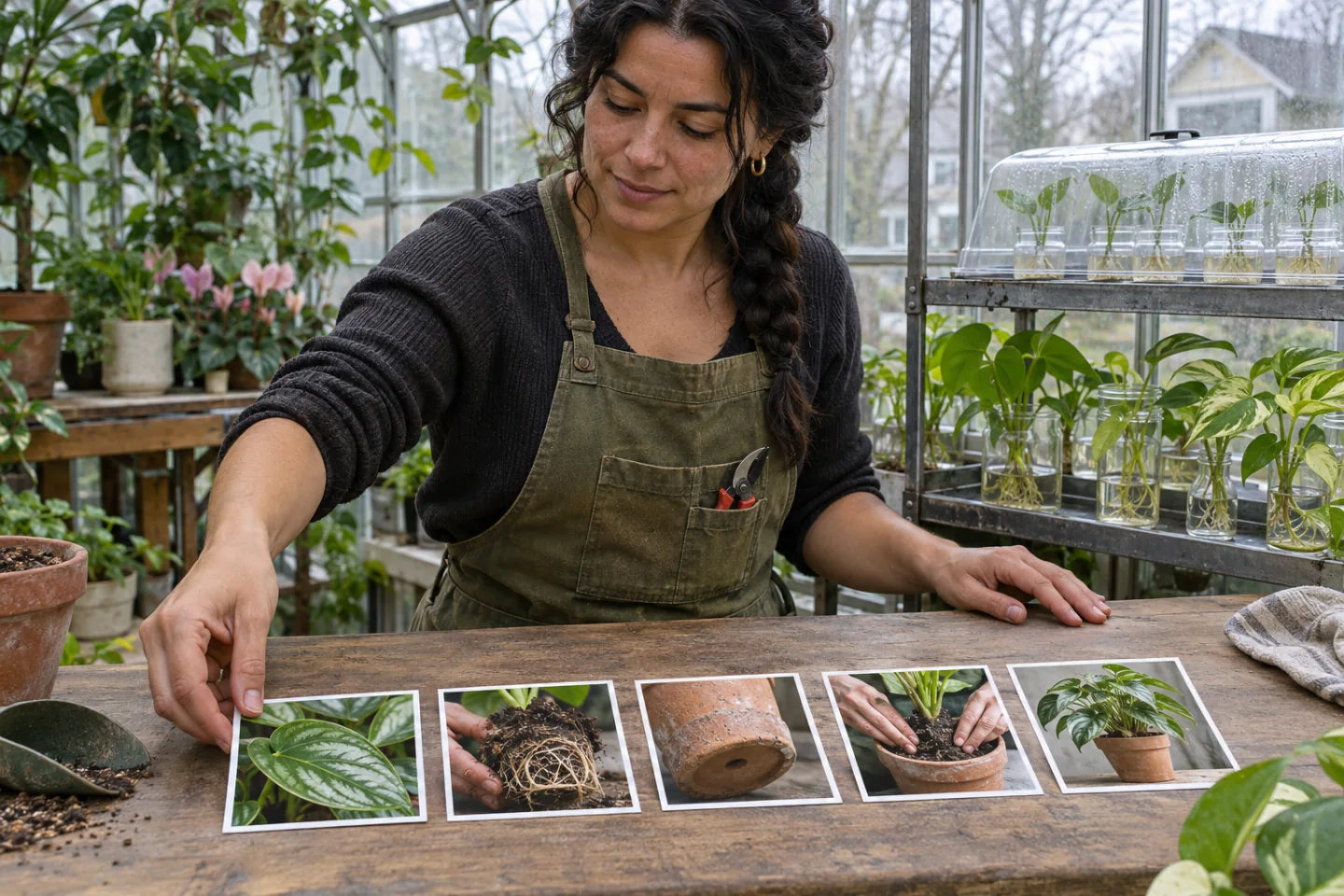
Imagine a neighborhood plant shop posted a five-slide repotting carousel. The original order is tools, roots in the old pot, hands repotting, the finished plant, and an aftercare note. The finished plant instantly tells a first-time reader what the post is about. But the root check and the hands-on step have to stay in that order for the instructions to make sense.
For an existing post with more than one possible sequence, give Trendy a plain-language inventory of the slides and ask for an editable carousel outline. This works with short descriptions you write yourself. The output you want is an old-to-new slide map and a short list of caption references to verify. Here is a prompt to adapt:
“Review a live five-slide Instagram carousel for beginners who want to understand repotting. Current order: tools, roots in old pot, repotting, finished plant, aftercare. Put a clear outcome first, keep each dependency intact, and keep all five assets. Return the new order with the original position beside each slide. Flag caption references and tell me what to do if step numbers are printed on the images. Leave horticultural instructions unchanged.”
| New position | Original position | Job in the revised post |
| 1 | 4, finished plant | Help the reader recognize the outcome immediately |
| 2 | 1, tools | Get everything within reach before the demonstration |
| 3 | 2, roots | Show what to look at before handling the plant |
| 4 | 3, repotting | Demonstrate the action after the setup |
| 5 | 5, aftercare | Leave the reader with the next practical step |
That is an illustrative result. In the actual Instagram editor, it takes one move: drag the fourth frame to the front. If the finished photo literally says “Step 4,” it stops working as an opener. Keep the numbered sequence and improve the caption, or make a clean follow-up with new artwork. Also rewrite “the result is on slide 4” as “the finished plant opens the post.” The caption will still make sense to someone who arrives from a shared link.
Choose a cover that reads at thumbnail size, then swipe from the cover into slide two. If the jump is too abrupt, the second slide may need to carry more context than a beautiful opener can provide. See Trendy’s guide to slide roles and mobile readability.
Troubleshoot an edit that won’t drag or save
- Edit is missing. Open the carousel from the profile that shared it and confirm you are looking at a feed post, not a shared preview or Reel. On a team account, verify that your access lets you edit that post. Start in the Instagram phone app rather than a scheduler.
- A swipe works, but a long press does nothing. Check that you are inside Edit. Try holding an ordinary photo first so you can tell whether you are still in viewing mode or interacting with a video. If the gesture still never engages, check for an app update, reopen Instagram, and try once more. Take a note of the account, device, and app version if you report the issue.
- The edit looked right but the old order came back. Reopen the post before retrying. The save may have failed or the view you opened may still show an older copy. If the in-app post consistently shows the old order, try one small move on a stable connection and wait for the save to finish.
- The first slide is correct but the grid looks odd. Inspect the profile preview separately. If your post menu offers Adjust Preview, try fitting or repositioning the crop. Confirm that the face, product, or essential text survives at thumbnail size.
- The post is part of an active brand campaign. Coordinate the change with whoever owns the creative approval. Share the new opening frame and the original post link, and ask the buyer to verify any separate ad preview in their own workflow. An organic profile check by itself leaves that ad placement unverified.
If the planned revision needs an entirely new sequence or missing media, draft a follow-up first. A short linked continuation can preserve a useful original tutorial and answer the one question it missed. Browse Instagram carousel formats for the follow-up.
Check the reader’s version before closing the task
Open the post from the profile, swipe from the first frame to the last, and read the caption next to it. Check numbered references, any photo/video transitions, and whether the final slide still delivers what the first one promised. If a teammate is allowed to view it, ask them to open the actual shared link and tell you which slide they see first and what they think the post is teaching. That gives you a quick check of both the save and the new reading order.
If you are tracking performance, write down the edit time and why you changed the sequence. Use that note when reviewing the post later. Responses after the edit may reflect timing, distribution, or other changes, so a before-and-after snapshot cannot isolate the effect of one moved slide.
Frequently asked questions
Can a video be moved as well as a photo?
Instagram’s announcement covers both photos and videos already in the carousel. After moving a video, play it from the saved post and check that it still has the setup it needs from the slide before it.
Can I add or replace a photo in a carousel that is already live?
The reorder gesture works on media already attached to the post. To show a newly created or corrected asset, plan a follow-up or publish a corrected carousel. If you are correcting something essential, make the correction visible in the surviving post’s caption where appropriate, so readers with the original link can find it.
Do I need to repost just to put a different photo first?
Use Edit and move the desired existing photo to position one. Save, reopen the post, and check the grid thumbnail. The saved order and the way the preview is cropped are both worth checking before you send the link again.