
To add a related video to YouTube Shorts, open YouTube Studio on a computer, go to Content, and select the uploaded Short. In its details, open Related video, choose a public or unlisted video from your own channel, and save. Viewers can tap the link below your channel handle in the Shorts player. Your channel needs advanced feature access. For a Short that demonstrates one step, choose the full lesson that shows what to do next.
Add the clickable link in YouTube Studio
Have both the Short and its destination ready before opening Studio. You can point to a regular video, another Short, or a live stream on your channel. The destination must be public or unlisted and comply with YouTube's Community Guidelines. Check the content itself before you link it. An old tutorial can have the right title and still use a different version of a tool, which leaves the viewer repeating the work.
- On a computer, sign in to YouTube Studio and verify the active channel, especially if you manage several.
- Open Content and select the Short you uploaded. Open its details and find Related video.
- Pick the intended destination. If two uploads have similar titles, confirm the thumbnail and watch the selected video before saving.
- Save and reopen the details. Confirm the same destination is still selected.
- Open the Short in the YouTube app with a viewer account. Look below the handle, tap the related-video link, and confirm the video that opens delivers the next step.
The official instructions show the desktop editing route. YouTube Creators' walkthrough of adding a link to a Short shows where the selection happens and how the link appears in the player. Use YouTube Help's Related video instructions for the menu and eligibility details if your screen differs from the walkthrough.
Pasting a watch URL into a Shorts caption or pinning it in a comment gives viewers text they can read. YouTube's link rules say URLs in those two places appear as plain text. Use Related video for the tap-through, and use the caption for context such as the name of the full lesson.
Choose the video that answers the next question
Watch your Short with the sound off first. Write down the concrete action a viewer can already repeat. Then write the next question that the person who just tried it is likely to ask. Use that question to pick a destination. When you have two reasonable matches, open both and choose the one that starts closer to the answer. This decision matters more than whether the destination is newer or longer.
| What the Short actually delivers | What a viewer may want next | Destination to attach |
| One visual check for a wobbly bicycle wheel | How do I tell which work the wheel needs? | A full diagnosis lesson with checks for the tire, rim and hub |
| One view of a repaired sweater seam | How do I repair the same opening from the start? | A close-up tutorial that shows setup, stitch direction and finishing |
| The first exercise in a two-part practice drill | How do I do the second exercise? | The next Short, with a title that names the missing step |
| A useful answer clipped from a live Q&A | Where can I hear the rest of the explanation? | Your replay with a chapter or otherwise easy-to-find section |
YouTube's creator guide to following a Short with a longer video gives examples of matching the topic to the destination. Apply that idea when editing the first sentence as well. “Watch the full video” makes sense after a clip that already names the problem. “See how to check the hub and tire in the linked lesson” tells viewers what they will get, even if the linked video's title is cut off on their phone.
A bicycle workshop pairs a wheel check with a full lesson
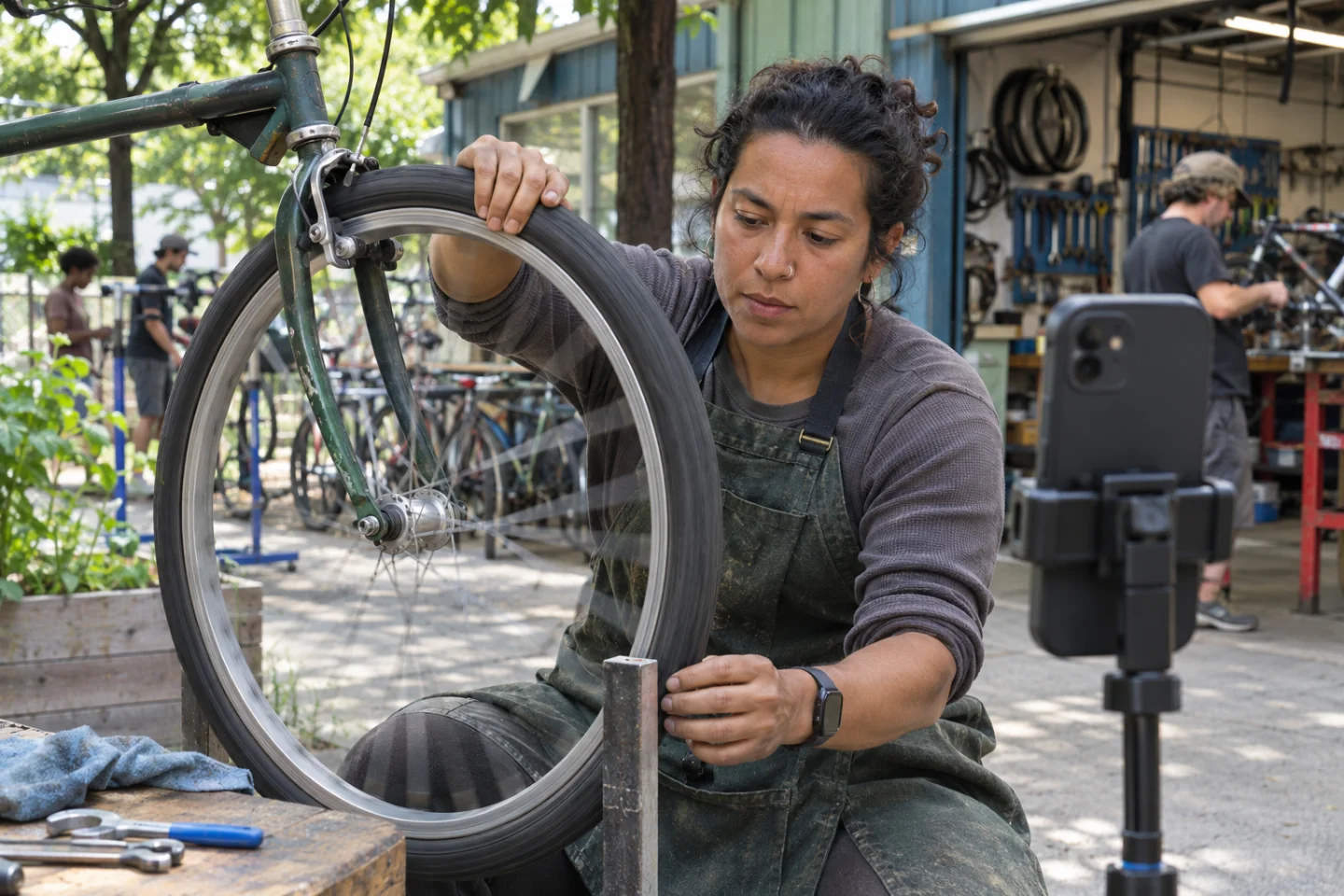
Imagine a repair co-op has a full tutorial called “Why your front wheel wobbles.” The lesson covers how to inspect the tire, rim and hub. The group has a clear vertical shot of the rim moving past a stationary reference point. That shot is useful on its own, and it leaves viewers with an obvious next question about the cause. Use the exact shot as the Short's starting point and the published tutorial as the destination.
Give Trendy chat a sentence describing your audience, a plain-text outline of the full tutorial, and the action you can actually show in the Short. Ask for a short script with an opening line, three shot notes and an ending that names the benefit of opening the related video. Try this prompt. “This is for people new to bike repair. I can show the gap between the rim and a fixed reference as the wheel turns. My full tutorial then shows separate checks for the tire, rim and hub. Write a short demonstration script and a one-sentence invitation to the full check. Keep it observational.”
Open the Trendy app to draft a short video script. Look for a draft you can shoot, with a first line naming what to watch, three distinct actions or angles, and a final line about the checks in the full video. An edited example could read like this.
- Opening shot and line. Put the rim and reference point in the same frame. “Watch this gap as the front wheel makes one turn.”
- Visual proof. Keep the camera still long enough to see the gap narrow and widen. Repeat the moment once so a viewer can compare both sides of the turn.
- Landing line. “The gap tells you where to look. The linked lesson shows three checks to narrow down the cause.”
Read the draft aloud while watching the source footage. Remove any claim you can't demonstrate, such as naming a specific broken part from that one shot. Replace broad promises with something the destination shows on camera. Select the real tutorial in Studio after the Short is uploaded. If the destination covers a different repair, revise the script or pick a better match before saving.
Diagnose a missing field or a link viewers cannot open
Work through one layer at a time. Start with the account if you cannot edit the field. Check the destination if the picker works. After saving, switch to a viewer account so you can reproduce what happens outside Studio.
| What you see | What to check | What to do next |
| The Related video field is missing | Confirm the active channel and its advanced feature access | Use Studio on desktop and look under Settings, Channel, Feature eligibility |
| The field opens but the destination is missing | Confirm the target is on that channel and has public or unlisted visibility | Open the target's own details and verify its status, then recheck the picker |
| The owner sees the link but a viewer cannot open the destination | Confirm the selected upload in Studio and test the target in the viewer account | Try a suitable public upload to see whether the problem is specific to the destination |
| The link opens a different video than expected | Compare the exact titles and thumbnails of similar uploads | Reselect, save, and repeat the tap from the viewer account |
| The viewer is trying to tap a URL in the description | Check whether the clickable related-video label is present below the handle | Use language that points to that label or names the linked lesson |
YouTube's advanced feature access guide explains how to check the channel's status. If you choose an unlisted destination, assume viewers who get the link can pass it on. Use a public lesson or a shareable unlisted lesson you own, and keep access-restricted instruction behind its intended permissions.
Run a small follow-up test
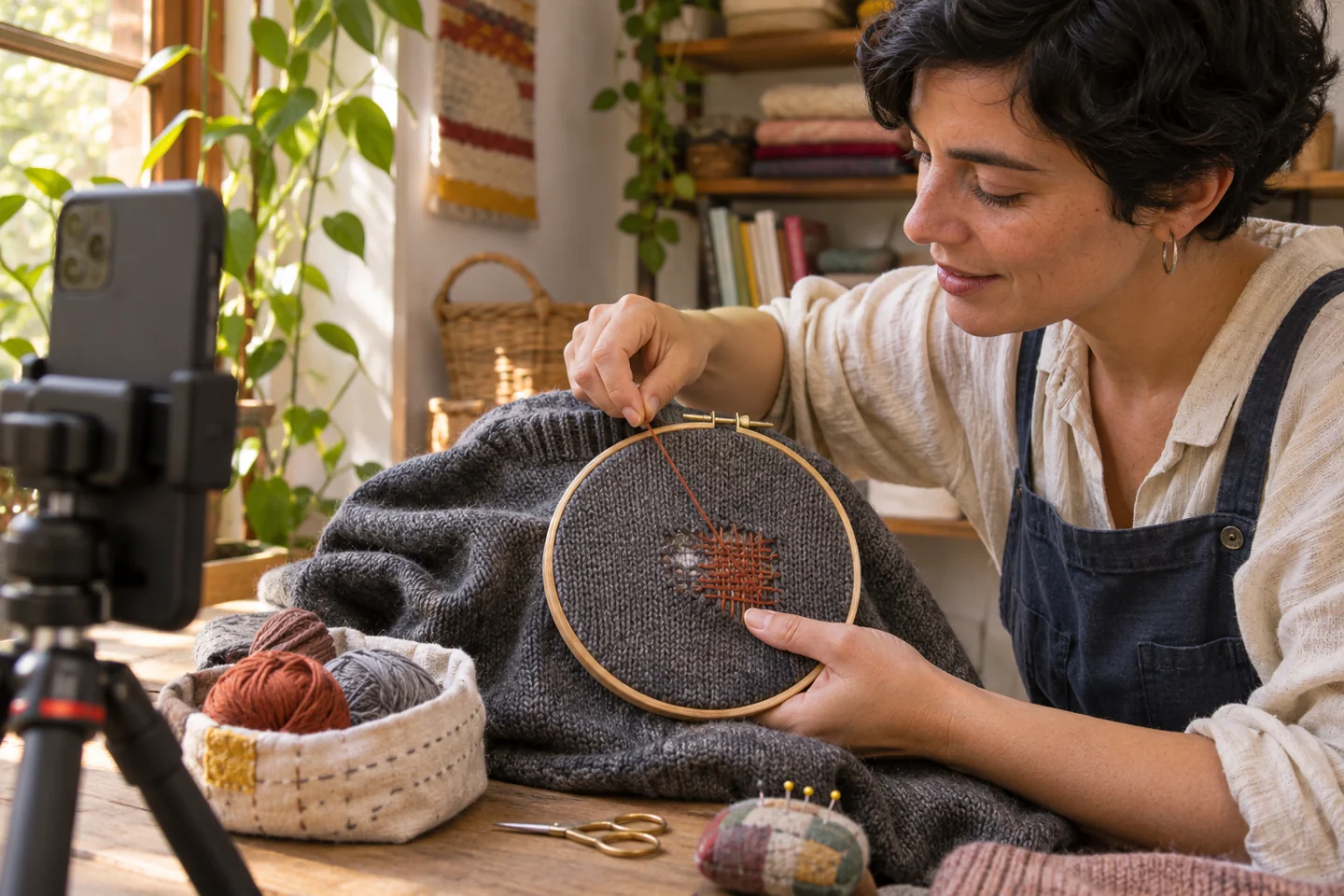
Pick an existing full tutorial and make two Shorts from two distinct questions it answers. For example, the textile creator in the illustration could show what a good first stitch looks like in one clip, and compare two thread shades in another. Each Short should teach one action. Give both versions the same destination and keep the invitation specific to the clip. If choosing that action is difficult, use a short-form format guide to pick a demonstration or comparison.
Write down the publish date, the opening line, the chosen destination, and what you will check after the same amount of time for each clip. Check the Short for viewing signals and the full tutorial's Reach report for traffic sources, if your report has enough data. YouTube's Reach documentation describes Shorts as traffic from the vertical viewing experience. Treat it as a broad source. Dividing the full video's Shorts-source views by a single Short's views does not give you the link's click rate. Both the traffic source and the tutorial's early retention can help you choose the next question to test without assigning every view to the link.
If some viewers arrive but leave before the demonstration, see how quickly the full tutorial shows the action that you promised. An earlier chapter or a better-matched follow-up may be the most useful change. Once you find a reliable pair, mark the original video and the question each clip answers in your content repurposing plan so another editor can build on it later.
Frequently asked questions
Can I add the link to a Short that is already live?
Yes. Open its details in YouTube Studio, choose Related video, pick the destination and save. If you swap destinations on an existing Short, replay the last line of the clip first to make sure it still describes what opens.
Can I link to another creator's video or to my website?
The Related video picker selects eligible content from your own YouTube channel. If you want people to find a website, check YouTube's distinct rules for channel profile links and other link types before deciding how to tell viewers where to go.
Does editing a full YouTube video into a Short do the same thing?
YouTube has a separate Edit into a Short workflow for eligible videos you uploaded. Shorts made with it link back to the original. The Related video field is the route covered here for an uploaded Short whose destination you want to select in Studio.
Before sharing the Short widely, do one last tap as a viewer. The title that opens should make sense immediately after the last line of the clip.