
A useful social media accessibility checklist starts with three questions: can someone understand your post without hearing the video, without seeing the image, and without decoding tiny or confusing text? Add meaningful image descriptions, review video captions, explain essential visual actions aloud, and keep the main message available as readable text. Build these steps into the draft rather than leaving them until the upload screen.
This guide shows how to do that for Reels, TikTok, carousels, visual posts, LinkedIn, X and Threads. It covers practical content decisions, not a certification of legal compliance. Platform information and sources were checked on 4 November 2026; menus and feature availability can vary.
First, separate the three kinds of text
A post caption is the visible copy accompanying a photo or video. Video captions are synchronized text representing speech and meaningful audio. Alt text is an image description supplied through a platform's accessibility field. They solve different problems: a persuasive post caption cannot replace missing dialogue, and a slogan in an alt field does not explain a photo.
There is also the transcript: a readable version of a video's spoken content, ideally including essential visual information. A transcript helps someone revisit instructions, but it does not provide the same in-time experience as synchronized captions. Plan the appropriate alternatives for the actual content.
| Content element | What a reader needs | Common failure | Practical correction |
| Product photo | The relevant visible detail | File name or sales slogan as alt text | Describe the feature the photo demonstrates |
| Spoken Reel or TikTok | Accurate dialogue and meaningful sounds | Untouched automatic transcription | Correct wording, timing and speaker changes |
| Silent demonstration | The action and its significance | Music plus an unexplained gesture | Narrate the key action or provide a described version |
| Educational carousel | The sequence and essential slide text | Information exists only inside graphics | Add slide descriptions and a readable summary |
| Text post with an image | A complete argument and described evidence | Conclusion depends on a tiny screenshot | State the conclusion in text and describe the evidence |
Write image descriptions that explain the point
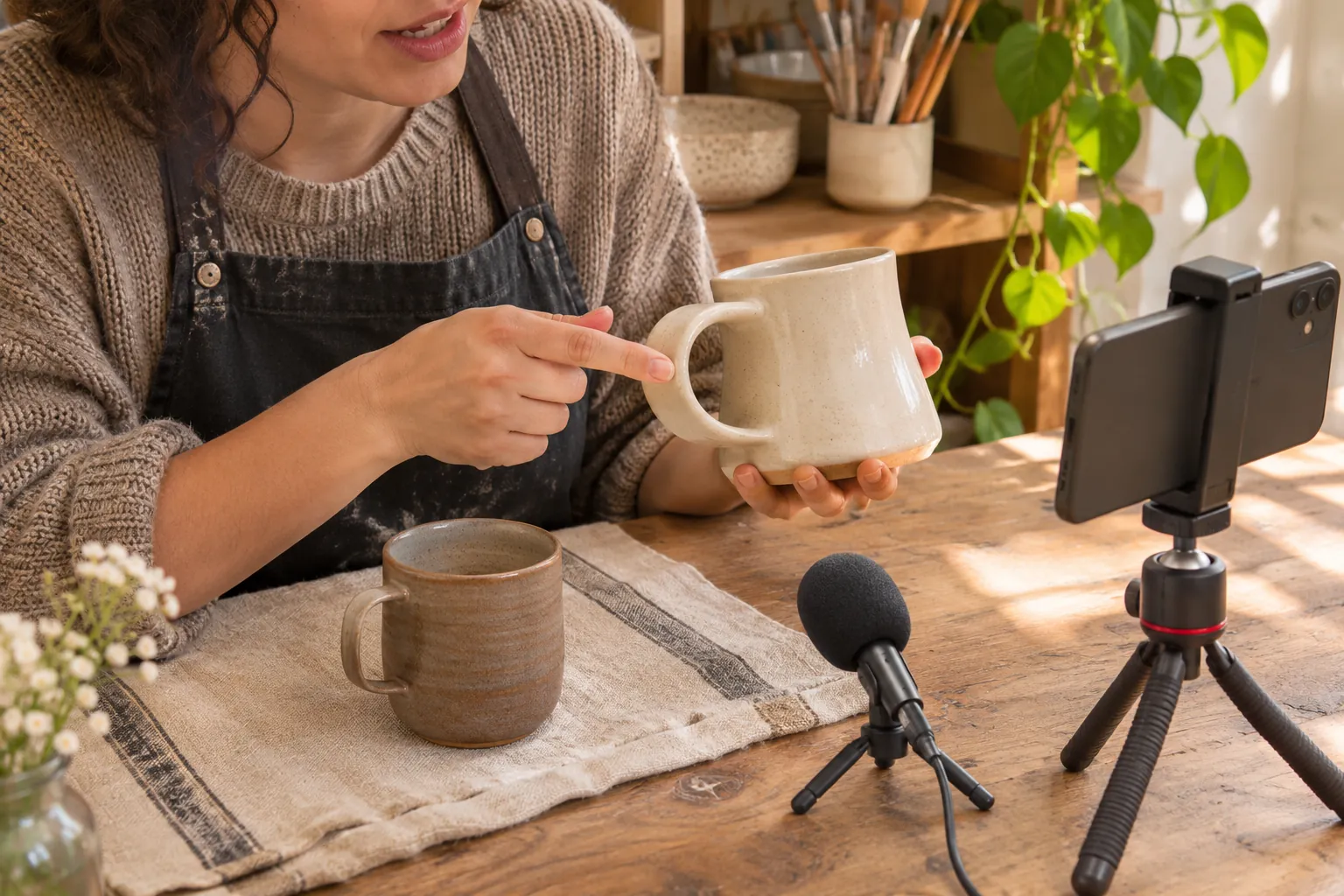
Start with why you chose the image. A ceramics maker posting about a handle's shape needs a different description from someone posting about the glaze on the same mug. Describe what is visible and relevant; avoid guessing identity, feelings, materials or product properties that the picture does not establish.
Hypothetical example: your post compares two mugs. Weak alt text would be “Beautiful mugs, shop now.” A useful draft would be “Two cream mugs on a linen table. The right mug has a wider loop handle; a hand holds it through the loop.” This supplies the comparison without claiming the mug suits every person's grip.
Use this writing sequence:
- Identify the subject and action: what is present, and what happens?
- Include the detail that supports the post's point: shape, arrangement, visible difference or essential wording.
- Check every statement against the final image, including any crop.
- Remove sales language, search keywords and details already conveyed adequately by adjacent text.
A graphic announcing a workshop needs its essential event information available as ordinary text. A chart may need a short image description plus the actual values and conclusion in the post or a linked readable page. Do not squeeze a complete document into one enormous description.
W3C's image decision tree is useful for deciding what information an image contributes. It concerns web images; social platforms do not expose all the same controls. Use their available description fields and check the resulting post rather than assuming website markup rules map directly to every app.
Make video captions useful, not merely present
Generate or transcribe captions, then listen while reading them. Check names, numbers, negation and instructions first. “Do not soak the cover” and “soak the cover” describe opposite actions; a small transcription error can change the entire lesson.
Break caption segments at sensible phrases. Keep them on screen long enough to read at the actual playback speed. Avoid covering a person's mouth, a hand demonstrating a technique or the controls someone needs to see. Test on a phone in the final platform preview, where interface buttons can overlap areas that looked clear in the editor.
Include meaningful sound where it carries information. If a click indicates that a clasp has engaged, a brief “[clasp clicks]” can matter. Constantly describing decorative background music can add distraction. Identify speakers when a change would otherwise be unclear.
Closed captions can be switched on or off in a supporting player. Open captions are part of the image and cannot be hidden. When the publishing surface supports an editable caption track, use it and review it. If you also use open captions for presentation, make sure the two versions agree and do not stack over each other. A transcript remains useful for a longer or detailed explanation.
Watch an original example, then test your own clip
W3C Web Accessibility Initiative's original English video, “Web Accessibility Perspectives: Video Captions” (2016), demonstrates a viewer facing a video without usable audio and then seeing captions. Notice what information becomes available when the words appear. Apply that comparison to your own introduction, instructions and final action. This is an educational example, not a current platform trend or a Trendy customer result.
The official W3C page includes a transcript describing the visuals. Use it if the player is unavailable or if reading suits you better. Captions convey audio; they do not automatically describe everything shown in the frame.
Explain visual actions in the script
Take the same mug demonstration. “Look at this” leaves the important observation entirely in the picture. A more informative line is “The handle on this mug has a wider opening; I can hold it with my hand through the loop.” Only use a line your actual footage supports.
For a tutorial, describe the action before or as it happens: “Turn the clasp until the flat side faces upward,” rather than “Do it like this.” For a comparison chart, say the relevant conclusion and what it compares. You do not need to list every object in the background; concentrate on what someone needs to follow the argument.
A deliberately visual story may need a separate audio-described version or a fuller descriptive transcript. Choose that before the final edit so the added description has room. If you are planning supporting footage, the phone B-roll guide can help you create shots that demonstrate one specific point each.
Adapt the accessibility packet to each format
Trendy can help develop an account-relevant idea into scripts, carousels, visual concepts and platform-native posts. Keep one factual core, then prepare the alternatives each output needs. An accessibility packet is simply the copy, descriptions and caption notes that travel with your media; it does not require a new tool.
| Format | Creative output | Prepare before publishing |
| Instagram Reel | Ready-to-shoot script with one demonstrated point | Spoken visual context, reviewed captions, readable description |
| TikTok video or concept | A native opening and clear payoff | Accurate captions and an explained action; check the final preview |
| Instagram carousel | A slide-by-slide lesson | Description for each meaningful image and essential text outside graphics |
| Visual post | One image with a clear message | Relevant alt text and ordinary-text information |
| LinkedIn post | A professional observation with an example | Readable post copy and image description; document summaries when needed |
| X or Threads post | A concise point or short sequence | Complete text argument, described attached images and clear links |
TikTok's official accessibility announcement documents alt text for photo posts alongside video caption tools. It is a 2025 announcement, not a newly released 2026 feature. For X, the current image-description guide explains adding descriptions separately to attached images. Check the relevant native composer; an image export alone does not establish that its description was transferred.
For carousels, keep slide order meaningful. If one slide contrasts two options, describe the distinction rather than repeating “slide three.” The carousel ideas guide offers lesson structures; the accessibility packet makes those structures understandable beyond the artwork.
Make written posts easier to navigate
Put the conclusion or useful promise early. Use short paragraphs, concrete verbs and descriptive links. “Read the workshop materials list” gives more context than “click here.” Explain an acronym at its first use if the intended audience may not know it.
Do not communicate a category only through color: pair it with a label or shape that you also explain. Choose text and background combinations with clear contrast and check designs at actual phone size. Avoid fast flashing effects and make important words readable without pausing every frame.
Write multiword hashtags with visible word boundaries, such as #CeramicMugCare. Avoid decorative Unicode alphabets that imitate bold or script. Use emoji sparingly rather than replacing words or marking every list item. RNIB's accessible social media guide explains these common reading barriers.
For a real practitioner example, see RNIB's original LinkedIn post about adding alt text. This is a source link, not an inline LinkedIn player. Notice that the post gives the reader a concrete publishing action rather than an abstract appeal to be inclusive.

Build a repeatable workflow in Trendy
Begin with your audience, account voice and one communication goal. Supply the factual details yourself: what the object does, what the real footage shows, and which dates or instructions are confirmed. Then ask for a useful script or post and the supporting publishing notes together.
Try this request: “My audience is beginner ceramic collectors. This post explains the visible difference between two mug handles, without claiming either fits everyone. Draft a short video script with spoken visual descriptions, a five-slide carousel outline and a LinkedIn version. Separate dialogue, on-screen text, suggested image descriptions and facts I must check. Use only the details I provide.”
Review the output against the media. An AI draft cannot establish an unseen detail or judge every viewer's experience. Save the approved script, descriptions and review notes with the idea in Notes or your planning document. Finish by adding the relevant text in each platform's publishing controls. Do not assume Trendy automatically fills native accessibility fields or certifies the result.
| Check | How to perform it | If it fails |
| Sound off | Watch the entire clip without audio | Correct missing dialogue and meaningful audio information |
| Picture unavailable | Read the post, descriptions and transcript without the image | Add the comparison, action or essential visual detail |
| Phone-size reading | View the final draft at normal size | Reduce crowding and improve text legibility |
| Factual agreement | Compare media, alt text and captions | Fix contradictions, invented details and stale versions |
| Final upload | Reopen the native preview or published post | Restore missing descriptions or caption settings |
Common questions before you publish
Should alt text contain SEO keywords?
Write it to communicate the image's purpose. A naturally relevant product name may belong, but a string of keywords is not an image description. Keep promotional material in the appropriate visible copy.
Are automatic captions enough?
Treat them as a draft. Review accuracy, timing, speakers and important sounds. If a native feature is absent or inadequate, choose another supported caption workflow and provide a readable transcript where appropriate.
Does every platform need identical wording?
No. Keep the facts consistent and adapt the wording to the audience, language and format. Translate image descriptions and captions along with the headline; do not leave supporting information in a language the reader cannot use.
Will accessibility guarantee more reach?
No. The immediate goal is to make the message understandable and usable. Track corrections, missing descriptions and audience feedback alongside your usual content results. A change in reach alone does not prove that captions or alt text caused it.
For your next post, choose one idea, assemble the complete publishing packet, and run the checks before uploading. Keep what works in your reusable brief so the following post starts with clearer content and fewer missing pieces.